Give the show a shape.
Bring people, topics, graphics, and media into your preparation workflow. Build around the broadcast you want to make.

ONE SYSTEM. A BRIGHTER SHOW.
Your guests need your attention.
Your production shouldn’t take all of it.
Stop making your guests wait while you hunt for a window. CueBrio puts cameras, layouts, topics, and media into one coordinated workflow—built for the person hosting and producing at the same time.
Built around OBS and Companion. Designed for the person on air.
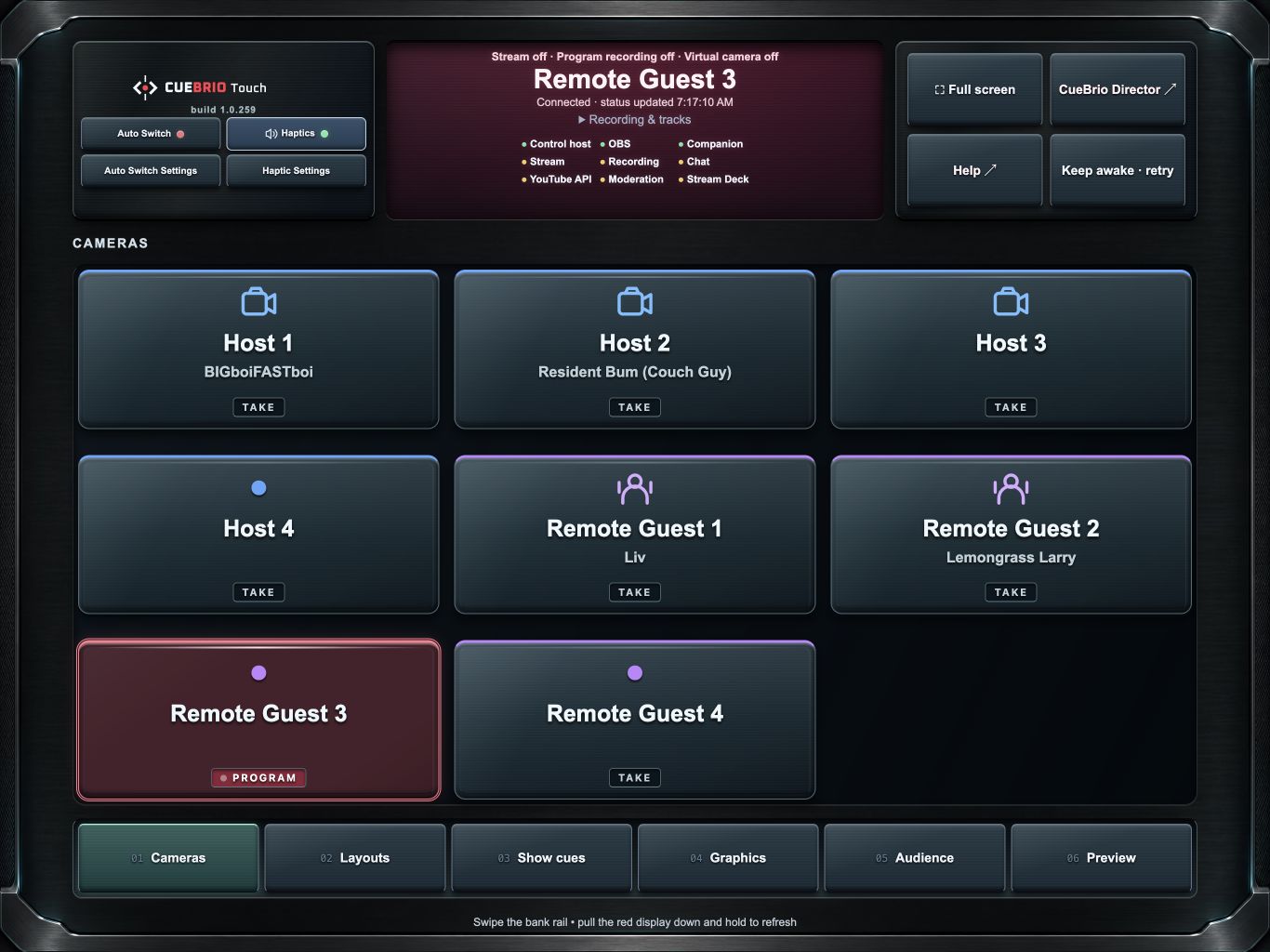
A LITTLE LESS ENGINEERING. A LOT MORE SHOW.
You need the right control, at the right moment, with enough context to know what happens next.
Bring people, topics, graphics, and media into your preparation workflow. Build around the broadcast you want to make.
Keep segments and topics close to the transport controls. See what you’re selecting before you put it on air.
Reach for a touchscreen, a physical key, or the Director workspace. Use supported automation when your attention belongs with your guests.
ACTUAL SOFTWARE. ACTUAL SHOW WORK.
From the first countdown to the last question, keep the next decision close.
Organize segments, keep topics and supporting media together, and see what comes next. Editing the plan doesn’t put it on air: you choose when to Take.
Explore the segment workspace ↗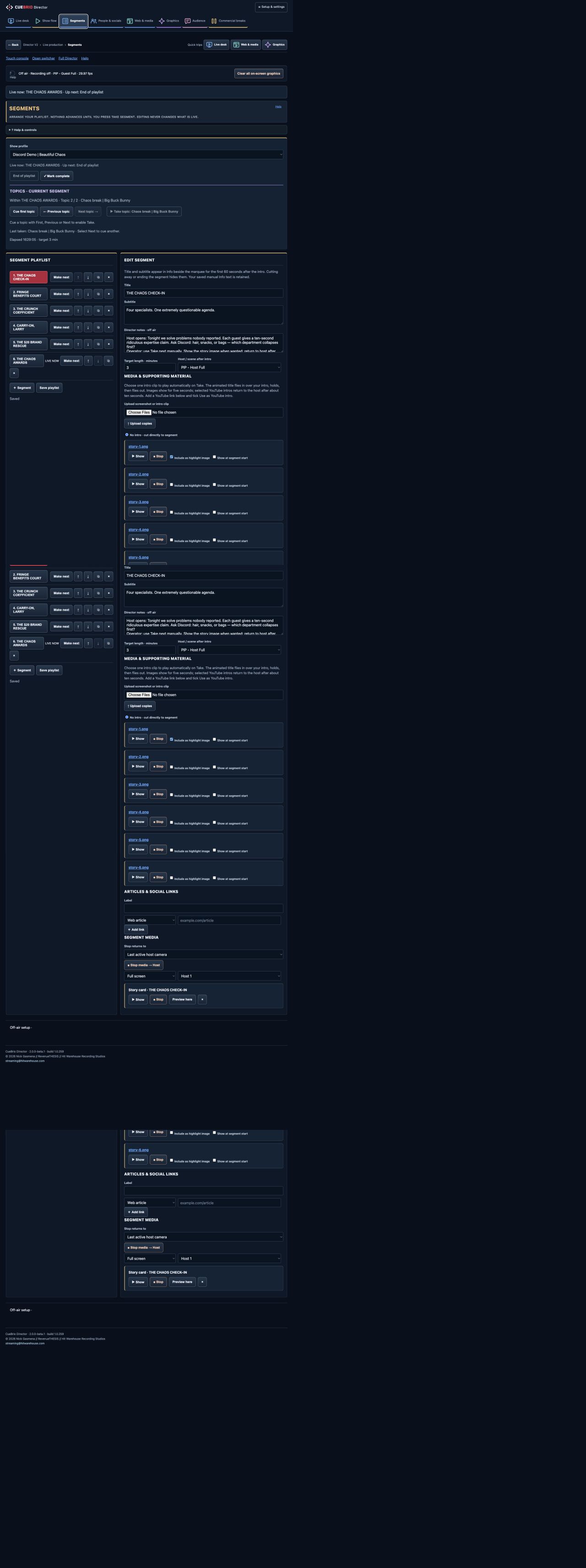
Prepare the countdown, put up a starting-soon notice, step away with BRB, and return to the show. Show flow puts the routine moves in a familiar order.
See the show flow controls ↗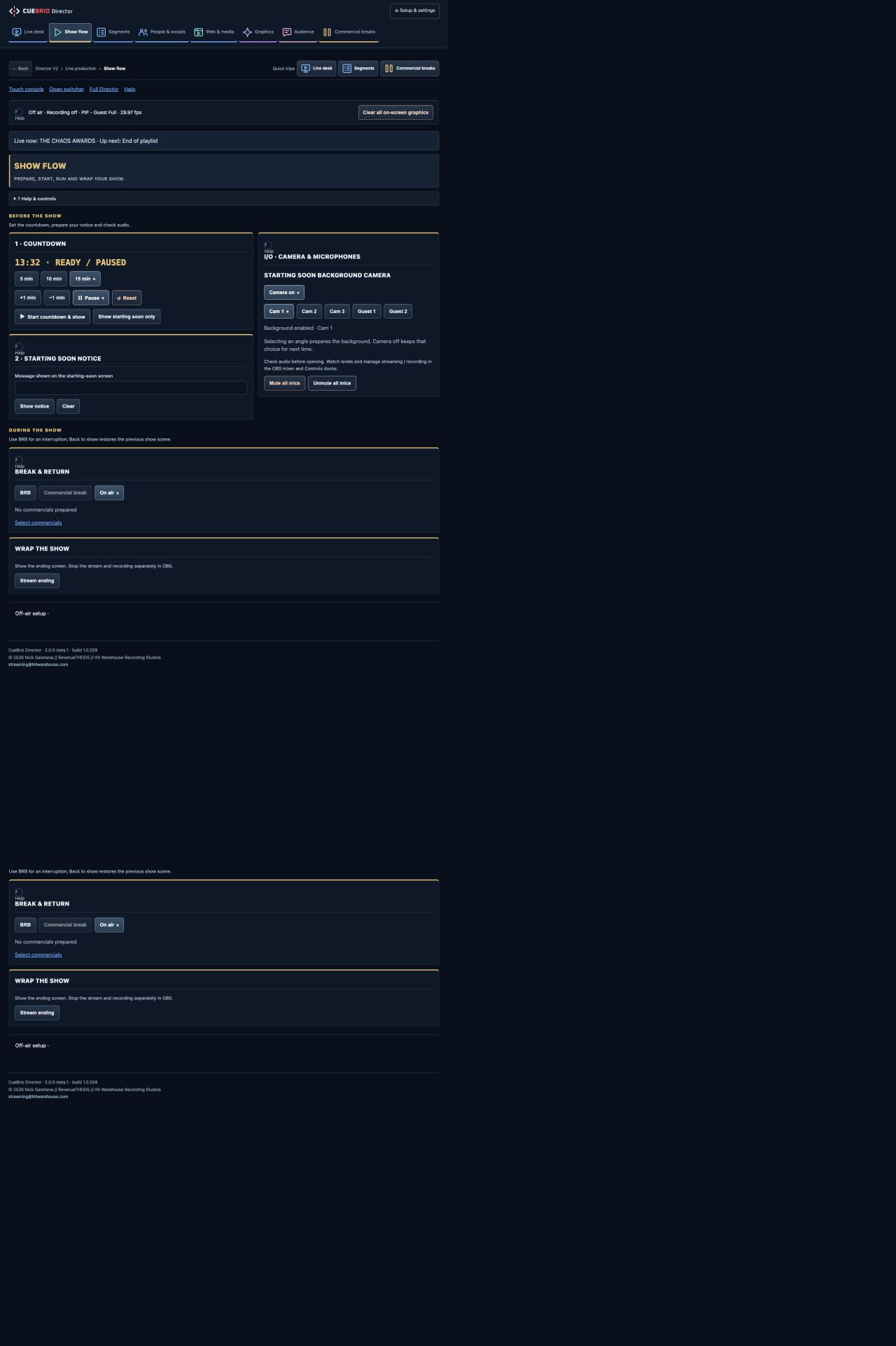
Auto Switching uses configured audio sources to follow speakers. Tune each person’s levels, set speaking and silence delays, and give the default host interruption priority.
Keep your hand on the show: override a shot when you need to. Full-screen views support switching; Host + two guests can rotate guest windows while keeping the host fixed. Other PIP layouts pause it.
Inspect the Auto Switch controls ↗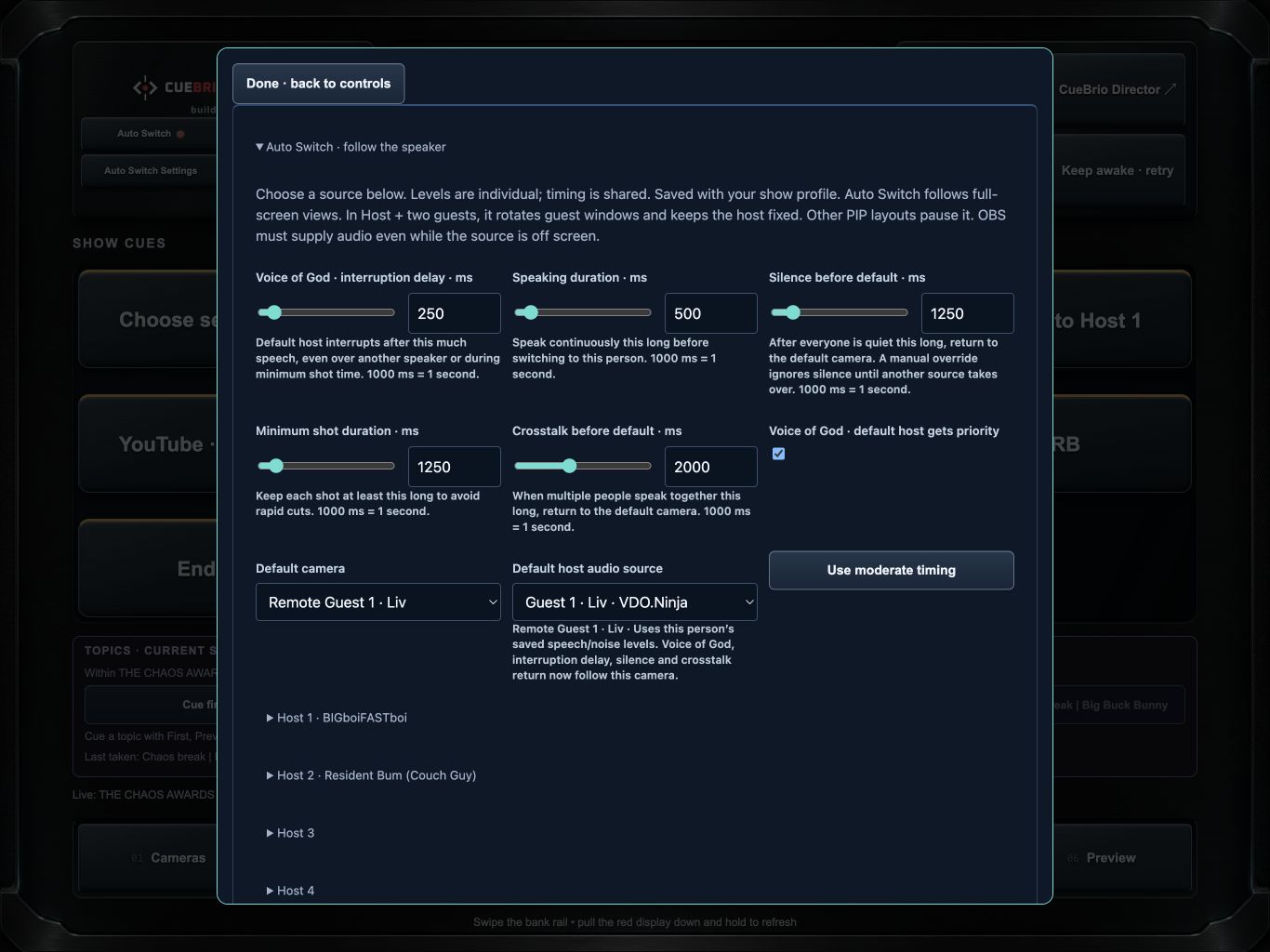
Choose people, remote guests, and content for supported layouts. Keep the arrangement deliberate without digging through OBS scenes.
View the layout bank ↗Move through topics and reach show media from the touch surface. Your rundown becomes something you can operate, not another document to babysit.
View Touch show cues ↗Use Director in a browser or Touch on a tablet with your configured host connection. Shared control state keeps the studio coordinated across supported surfaces.
View the browser workspace ↗Screenshots show the current off-air demo build and its saved example data. Click to inspect the original screens. Remote access requires a configured connection; these captures were made locally. Available features depend on your equipment and integrations.
YOUR STUDIO. FOUR CONNECTED PARTS.
 PLAN & PRODUCE
Your production workspace for the rundown, segments, topics, and show preparation. Less hunting through windows. More awareness of where you are and where you’re going.
 TAP & SWITCH
A dedicated control surface for tablets and phones, with readable labels, grouped controls, and visible state. Built for a host who operates their own show.
 FEEL & TRIGGER
Bring physical controllers such as Stream Deck into the same production workflow. Familiar actions, tactile access, and less time reaching for a mouse.
 CONNECT & COORDINATE
The shared services behind your controls. Coordinate state and supported automation without maintaining a separate set of stream settings on every device.
BUILT FOR THE PERSON BEHIND THE BROADCAST.
Think of CueBrio as an assistant engineer at your side: keeping controls connected, making the next cue clearer, and helping reduce avoidable mistakes.
From conversations and podcasts to creator streams and multicamera shows, the goal stays the same: give you more room to focus on the people watching—and the people beside you.
Have your invitation? Build your show ↗Broadcast setup is invitation-only. Available workflows depend on your configured studio, equipment, and integrations.